
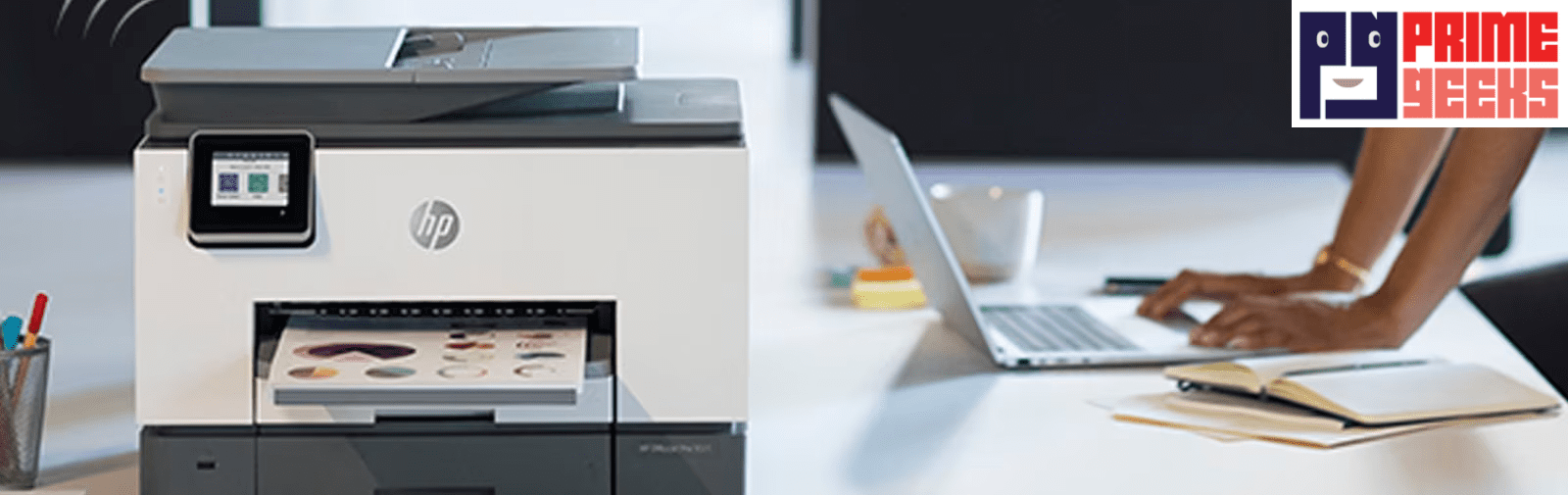
When you buy a new printer, it can feel confusing. There are many buttons, wires, and settings to learn. This guide will help you understand everything in simple words. We will explain how an hp computer printer works, how to set it up, and how to keep it running well. Our goal is to make printing easy for you at home or in the office.
At Prime Geeks, we believe beginners deserve clear and honest guidance. We have helped many families, students, and small businesses choose and install the right printer. From fixing paper jams to setting up wireless printing, we have real-world experience solving common problems.
This guide is based on hands-on support, practical testing, and professional standards. You can trust this information because it is written with care, accuracy, and a focus on your safety and success.
What Is an HP Computer Printer?
An hp computer printer is a machine that prints words and pictures from your computer onto paper. It connects by cable or Wi-Fi and turns digital files into real pages. Many people use it to print homework, office reports, photos, and forms.
HP printers are known for being easy to use and reliable. They come in different sizes and models for home or business use. Understanding what it does is the first step to using it well.
How Does an HP Computer Printer Work?
A printer takes data from your computer and places ink or toner on paper. Inkjet models spray tiny drops of ink, while laser models use powdered toner and heat. Both types are designed to give clear and sharp results.
When you press “print,” the printer reads the file and prepares the page. Rollers pull the paper inside, and the machine carefully adds text or images. The paper then comes out ready to use.
Types of HP Computer Printer for Home and Office
There are different types of printers for different needs. Inkjet printers are great for photos and colorful pages. Laser printers are fast and better for large amounts of text. All-in-one models can print, scan, and copy in one device.
Some printers are small for desks, while others are built for busy offices. Choosing the right type depends on how often you print and what you print most.
How to Set Up an HP Computer Printer Step by Step
Setting up a printer is simple if you follow each step. First, remove all packaging and protective tape. Plug in the power cable and turn on the printer. Next, install the ink or toner cartridges that come in the box.
Connect the printer to your computer using a USB cable or Wi-Fi network. Finally, install the printer software or driver so your computer can communicate with it.
Connecting Your Printer to Wi-Fi Safely
Wireless printing makes life easier. You can print from your laptop, tablet, or even phone. To connect to Wi-Fi, go to the printer’s control panel and select your network name. Enter your password carefully to avoid errors.
Make sure your router is nearby for a strong signal. A secure network keeps your data safe while printing private documents.
Benefits of Using an HP Computer Printer
There are many benefits to owning an hp computer printer. It saves time because you can print at home anytime. It also helps students finish school projects quickly. Small businesses can print invoices and forms without visiting a print shop.
Modern printers are energy-efficient and designed to reduce waste. Over time, having your own printer can save money and increase productivity.
Common Problems and Easy Fixes
Sometimes printers stop working as expected. Paper jams are common but easy to fix by gently removing stuck paper. Low ink warnings mean it is time to replace cartridges. If pages print with lines, you may need to clean the print head.
Restarting the printer often solves minor software issues. Regular care prevents many problems before they start.
Choosing the Right HP Computer Printer for Your Needs
Before buying, think about your daily use. Do you print photos or mostly documents? Do you need scanning and copying features? A student may need a small, affordable model, while an office may need a fast laser printer.
Compare print speed, ink cost, and wireless features. Making a smart choice at the start prevents future frustration.
Maintenance Tips to Make Your Printer Last Longer
Good care keeps your printer working for years. Always use the correct ink or toner made for your model. Keep the printer in a clean, dry place away from dust. Print a test page once a week if you do not use it often.
Turn off the printer properly instead of unplugging it suddenly. Simple habits like these protect your investment.
Cost of Ink, Toner, and Long-Term Savings
Many beginners only look at the printer price. However, ink and toner costs are also important. Inkjet cartridges may need replacing more often than laser toner. Some printers support high-yield cartridges that print more pages.
Choosing the right model can lower long-term costs. Smart planning helps you stay within your budget.
Safety, Data Protection, and Responsible Use
Printers handle personal and business documents. Always use secure Wi-Fi with a strong password. Update printer software regularly to protect against security risks. Keep printed documents in a safe place to prevent misuse.
Businesses should follow local data protection laws when printing sensitive information. Responsible use keeps both your information and your device safe.
Expert Support and Real-World Guidance
Even with the best guide, questions may come up. That is normal for beginners. Our team at Prime Geeks has worked directly with customers who struggled with setup, wireless errors, and printing delays. Through hands-on troubleshooting, we learned that patience and clear instructions make all the difference.
We focus on simple explanations and practical solutions that work in real homes and offices. Our mission is to act as your trusted guardian whenever technology feels confusing.
Final Thoughts on Getting Started
Buying and using a printer does not have to be stressful. Once you understand how it works, it becomes a helpful tool in daily life. An hp computer printer can support school tasks, office work, creative projects, and more.
Choosing the right model, setting it up carefully, and maintaining it properly will give you the best results. With expert advice and reliable support from Prime Geeks, you can feel confident at every step.
Safety Disclaimer: Always follow the manufacturer’s instructions when installing or maintaining your printer. If you are unsure about electrical connections or technical issues, seek professional assistance to avoid damage or injury.