
Getting a new phone is exciting. You want to use it right away. But first, you need to move your photos, contacts, and apps. Many people ask, how to transfer data from iPhone to iPhone without losing anything important? The good news is that it can be simple when you follow the right steps. With careful planning and the right guidance, your move to a new device can feel smooth and safe.
At Prime Geeks, we guide families and small business owners through device upgrades every week. We understand that your phone holds memories, work files, and personal information. That is why we focus on safe methods that protect your data and privacy. We believe in clear advice, honest steps, and real support you can trust.
Why Moving to a New iPhone Feels Overwhelming
When you look at your old phone, you may not realize how much is inside. There are thousands of photos, saved passwords, messages, and apps. It can feel scary to think about losing any of it.
Many people worry that something will not copy over correctly. Others are afraid they will press the wrong button. The good news is that Apple gives simple tools to make the process safe and easy.
Important Steps Before You Start the Transfer
Before you move anything, take a few minutes to prepare. First, make sure both iPhones are fully charged. A low battery can stop the transfer halfway through. Next, connect to a strong and stable Wi-Fi network. Also, update both phones to the latest version of iOS so they can work together smoothly. These small steps help prevent problems later.
How to Transfer Data from iPhone to iPhone Using Quick Start
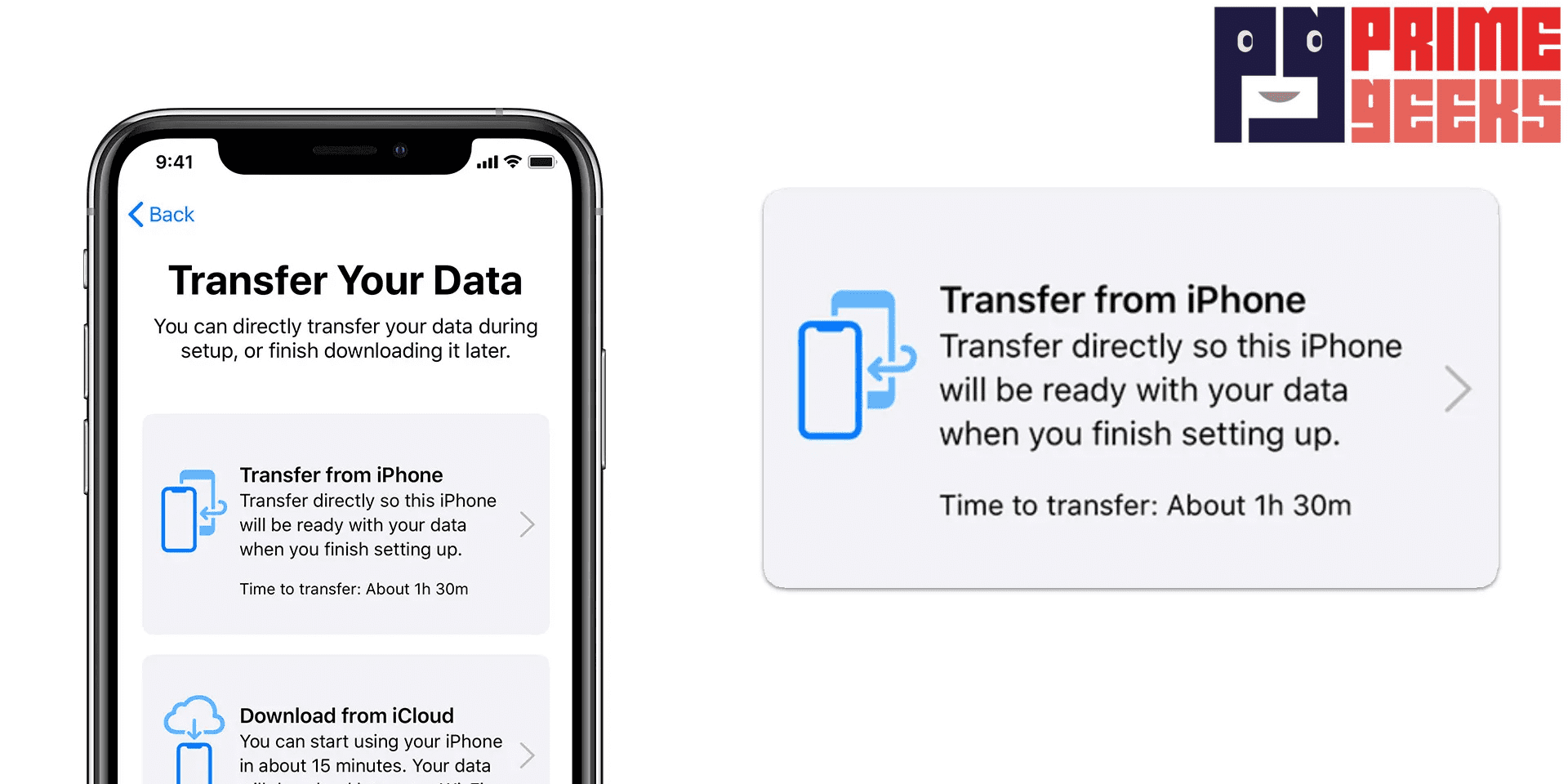
If you are wondering how to transfer data from iPhone to iPhone in the fastest way, Quick Start is often the best choice. Place your old phone next to your new one and turn on the new device.
A setup screen will appear on your old phone. Follow the steps shown on the screen and scan the animation with your old device. Then choose to transfer data directly from one phone to the other. Keep the phones close together until the process is finished.
How to Transfer Data from iPhone to iPhone with iCloud Backup
Another safe way to learn how to transfer data from iPhone to iPhone is by using iCloud. First, back up your old phone by going to Settings and tapping iCloud Backup. Make sure the backup is complete before moving on.
When you turn on your new phone, choose “Restore from iCloud Backup.” Sign in with your Apple ID and select the latest backup. This method is helpful if you do not have both phones together for long.
Using a Wired Connection for a Faster Transfer
Some people prefer using a cable because it can be quicker. With a wired transfer, you connect both phones using a Lightning cable and an adapter. This method is helpful if you have a lot of photos or videos.
It can move large files without depending only on Wi-Fi speed. However, you must have the correct cable and adapter. If you do not, Quick Start or iCloud may be easier options.
Moving Only Certain Files with AirDrop
Sometimes you do not want to move everything. Maybe you only need photos or a few documents. AirDrop lets you send selected items from one phone to another. Turn on Bluetooth and Wi-Fi on both devices.
Then choose the file and tap the AirDrop icon. This method is great for small transfers but not for moving your whole phone.
Common Problems During iPhone Data Transfer
Even when you follow steps carefully, small problems can happen. The transfer may pause if Wi-Fi becomes weak. Sometimes people forget their Apple ID password. In other cases, the new phone may not have enough storage space.
When this happens, stay calm and check each setting slowly. Restarting both phones can also fix many small issues.
Our team at Prime Geeks has helped many customers who felt stuck during setup. We always recommend keeping login details written down safely before starting. We also suggest checking storage space on the new device first. These small actions prevent big headaches later.
Protecting Your Privacy and Personal Information
Your phone stores private data like bank apps, emails, and saved passwords. That is why security is very important. Always make sure you are connected to a secure Wi-Fi network, not public Wi-Fi at a coffee shop.
Use strong Apple ID passwords and enable two-factor authentication. After the transfer, sign out of your old phone before giving it away. You can also erase all content and settings to protect your information.
Checking That Everything Transferred Correctly
After the transfer is complete, do not rush. Take time to check your new phone. Open your Photos app and scroll through your pictures. Check your contacts and make sure important numbers are there.
Open a few apps to confirm they are working. It is better to double-check now than notice something missing later.
Benefits and Drawbacks of Each Transfer Method
Every method has pros and cons. Quick Start is fast and simple, but both phones must be nearby. iCloud is flexible, but it depends on internet speed and storage space.
A wired transfer can be faster for large files, but you need special cables. AirDrop is perfect for small files, yet it cannot move everything at once. Choosing the best option depends on your needs, time, and tools available.
Real-World Experience: What Most Users Prefer
From our hands-on experience helping families upgrade devices, most users prefer Quick Start because it feels easy and guided. Parents often like iCloud because it creates a backup copy for safety. Small business owners sometimes choose wired transfers for speed.
We have seen that planning ahead makes the biggest difference. People who prepare passwords and update their phones usually finish without stress. That is the power of experience combined with simple steps.
How to Transfer Data from iPhone to iPhone Without Losing Photos
Photos are often the most valuable part of your phone. To make sure they are safe, confirm that iCloud Photos is turned on before starting. You can also create an extra backup on a computer for added protection.
During setup, choose the most recent backup so your newest pictures are included. After the transfer, count a few albums and compare them with your old phone. Taking this extra time keeps your memories protected.
When to Ask for Professional Help
Sometimes things do not go as planned. If your phone is damaged or will not turn on, the transfer may be harder. In these cases, getting expert support can save time and prevent mistakes.
Prime Geeks acts as a trusted guardian for customers who need careful data handling. We guide users step by step and follow strict privacy practices to keep personal information secure. Professional help can be worth it when your data truly matters.
Simple Tips to Make Future Transfers Easier
You can make your next upgrade even smoother by building good habits. Turn on automatic iCloud backups so your data saves every day. Keep your Apple ID information secure but easy to find when needed.
Delete apps and files you no longer use to save storage space. Regularly updating your phone also helps it work better with new devices. These habits make future transfers faster and safer.
Final Thoughts on a Smooth iPhone Upgrade
Learning how to transfer data from iPhone to iPhone does not have to be confusing. With the right steps, strong Wi-Fi, and a little patience, the process becomes simple. Always prepare your devices, choose the best method for your needs, and double-check your files afterward.
If you ever feel unsure, asking for guidance can prevent data loss and stress. Your phone holds important parts of your life, so treat the transfer with care.
This article is for general educational purposes only. Always follow official device instructions and safety guidelines when handling personal data. If you are unsure about technical steps or privacy settings, consider speaking with a qualified professional for personalized assistance.