
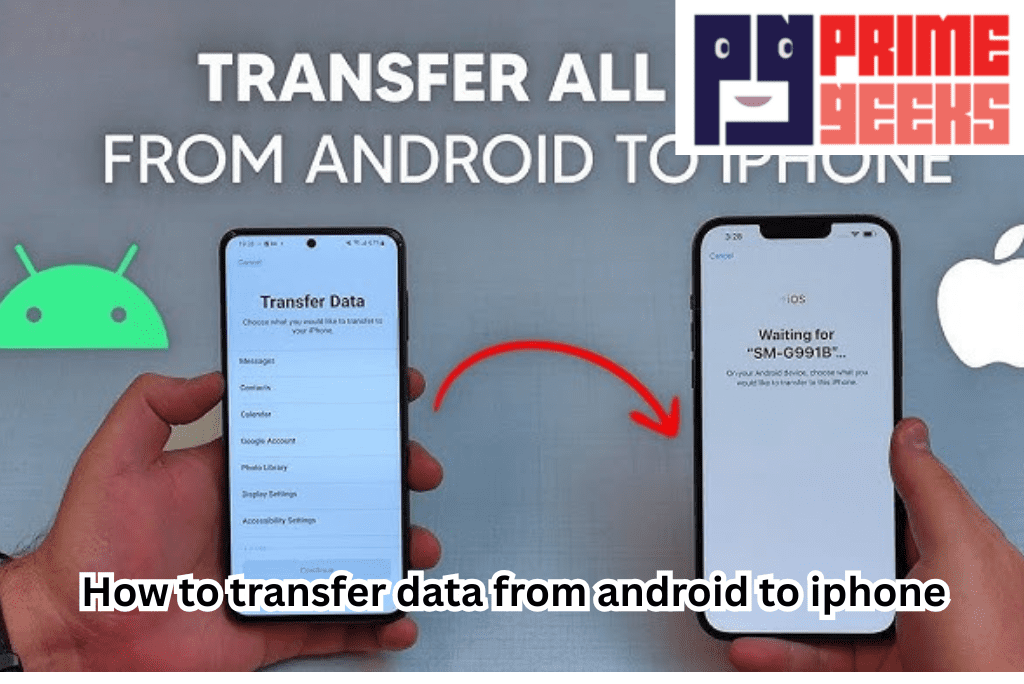
Switching from an Android device to an iPhone can be exciting, but one of the most common concerns users face is how to transfer data from Android to iPhone. From photos, videos, and contacts to messages, apps, and calendars, moving your important data safely and efficiently is crucial to a smooth transition.
In this guide, we’ll cover the easiest, safest, and most reliable ways to transfer your data without losing anything.
Why Transferring Data is Important
When you switch devices, keeping your data intact ensures continuity in your personal and professional life. Losing contacts, messages, or photos can be frustrating, especially if they’re irreplaceable. A proper transfer process allows you to continue using your new iPhone seamlessly, with all your essential information at your fingertips.
Apple and Android devices run on different operating systems, which makes direct transfers slightly complicated. However, thanks to tools and apps like Apple’s Move to iOS, cloud solutions, and third-party apps, the process is now straightforward.
Using Apple’s “Move to iOS” App
Apple offers the Move to iOS app specifically designed to transfer data from Android to iPhone safely. Here’s how to use it:
-
Install Move to iOS: On your Android device, download the Move to iOS app from the Google Play Store.
-
Set Up Your iPhone: During the iPhone setup process, select “Move Data from Android” when prompted.
-
Connect Devices: Open the Move to iOS app on your Android device, accept the terms, and enter the code displayed on your iPhone.
-
Select Data to Transfer: You can choose to move contacts, message history, photos, videos, web bookmarks, mail accounts, and calendars.
-
Start the Transfer: Tap “Next” on your Android device and let the transfer process complete. The time will vary depending on how much data you have.
-
Complete Setup on iPhone: Once the transfer is finished, continue setting up your iPhone and verify that all data has been successfully moved.
Pro Tip: Ensure both devices are connected to power and Wi-Fi during the transfer to avoid interruptions.
Transferring Contacts and Calendars Separately
If you prefer not to use the Move to iOS app, you can manually transfer contacts and calendars using cloud services:
Using Google Account:
-
Contacts: Sync your contacts with your Google account on Android, then log in with the same account on your iPhone. Contacts will automatically appear.
-
Calendars: Sync your calendar with Google Calendar and add your Google account to your iPhone’s settings to view events.
This method is particularly useful if you already use Google services regularly.
Transferring Photos and Videos
Photos and videos can take up a lot of storage, so you may want multiple options:
1. Using iCloud:
-
Upload photos from your Android device to Google Photos.
-
On your iPhone, install Google Photos and log in to access your images.
2. Using a Computer:
-
Connect your Android device to a PC or Mac and copy the photos and videos to a folder.
-
Connect your iPhone and use iTunes or Finder (Mac) to sync the files to your iPhone.
3. Third-Party Apps:
Apps like Dropbox, OneDrive, or Google Drive can store your photos and videos in the cloud, allowing you to download them on your iPhone.
Transferring Messages
Transferring SMS and MMS messages requires some extra steps:
-
Move to iOS: This app supports message transfer during the initial setup.
-
Third-Party Software: Apps like iSMS2droid can help move messages, especially if you missed the Move to iOS step.
Note: Messages sent through apps like WhatsApp require their own backup methods.
Transferring WhatsApp Data
If you use WhatsApp, you can transfer your chat history from Android to iPhone using the official WhatsApp migration tool:
-
Update WhatsApp on both devices.
-
On your Android, go to Settings → Chats → Move Chats to iOS.
-
Connect your devices via cable or QR code as instructed.
-
Complete the transfer following the on-screen instructions.
This ensures your WhatsApp messages, photos, and media are available on your new iPhone.
Apps and App Data
App data cannot always be transferred between Android and iOS due to OS differences. Here’s how to handle apps:
-
Re-download apps: Go to the App Store on your iPhone and install your favorite apps manually.
-
Cloud Sync: Some apps, like Gmail, Evernote, or Spotify, save data in the cloud. Log in with the same account to restore your app data.
-
Game Progress: For games, check if they support account linking or cloud save to restore progress.
Tips for a Smooth Transfer 💚
To ensure your data transfer goes smoothly, follow these green-marked tips:
-
💚 Backup Everything First: Before starting, back up your Android device to Google Drive or a computer.
-
💚 Charge Devices: Ensure both devices are fully charged or plugged in.
-
💚 Use Stable Wi-Fi: Transfers over Wi-Fi can fail if the connection drops.
-
💚 Be Patient: Large transfers may take hours depending on the data size.
-
💚 Verify Everything: After transfer, check contacts, messages, photos, and apps to ensure nothing is missing.
-
💚 Update Software: Make sure both devices are running the latest OS versions for compatibility.
Troubleshooting Common Issues
Even with careful planning, you may encounter issues during the transfer:
-
Transfer gets stuck: Restart both devices and try again.
-
Missing contacts or messages: Ensure they were synced with your Google account or included in the Move to iOS selection.
-
Apps not transferring: Reinstall from the App Store. Some Android apps may not be available on iOS.
Following these steps and tips resolves most transfer problems efficiently.
Final Thoughts
Switching from Android to iPhone doesn’t have to be stressful. With tools like Move to iOS, cloud services, and careful planning, you can transfer your data securely and continue using your new iPhone without losing important files. Remember to backup first, charge your devices, and verify all data after the transfer.
Whether you’re moving contacts, photos, messages, or app data, the right preparation ensures a smooth transition. By following this guide on how to transfer data from Android to iPhone, you can enjoy your new device with confidence and ease.